






-
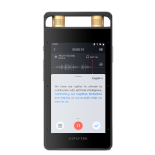
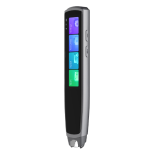
How to Export Audio and Transcribed Text from the iFLYTEK Smart Recorder(302pro)?


File Export Guide
Method 1: Export files via USB connection
1.Turn on the recorder.
2.Connect it to your computer using a USB cable.
For Mac users: You need to install the Android File Transfer tool. Download it here: http://dl.google.com/dl/androidjumper/mtp/current/AndroidFileTransfer.dmg
3.Unlock the recorder and tap 【Export files】 when prompted.
4.On your computer, open the 【Record File】 folder in the recorder’s drive.
5.Copy the desired files to your computer to complete the export.
Method 2: File formats
1.Audio files: wav
2.Transcribed text files: docx
-
When the iFLYTEK Smart Recorder(302pro) is unlocked and connected to a computer via USB, can the files be accessed directly?
When the iFLYTEK Smart Recorder(302pro) is unlocked and connected to a computer via USB, can the files be accessed directly?
-
The disk appears empty after the iFLYTEK Smart Recorder(302pro) is connected to the computer.
This issue occurs when the computer is unable to read the data. Please try the following actions:
1.Check if there are any recordings or text files stored on the recorder.
2.Ensure that the 【Export files】 button on the recorder’s screen has been clicked.
3.Reconnect the data cable, or try using the original cable.
4.For Apple systems, we recommend properly installing the Android File Transfer driver (download link: http://dl.google.com/dl/androidjumper/mtp/current/AndroidFileTransfer.dmg).
5.Restart both the device and the computer and try again.
-
The iFLYTEK Smart Recorder(302pro) is not recognized as a disk when connected to the computer via a data cable.
If the computer unable to identify the disk, basicly there are three problems: the problem of the data cable, computer or the recorder itself.
1.Please confirm whether there is a pop-up window prompt: "export files, charging only, update" when the recorder is connected to the computer. If not, please follow step 2 and 3. If so, then skip to step 4.
2.Confirm whether you use the original data cable (to determine whether it is the data cable problem, you can change a data cable to have a try).
3.Change the computer to have a try. (confirm whether it is a computer problem. If the computer is restricted to prohibit the connection of Android devices. Our device is Android system, if the computer disables the Android device, the device can not be used either. If the device can not be recognised by changing the cable or the computer, please replace the machine.)
4.May I know are you useing the Windows system or MAC system?
For Windows computer: The computer can not identify the disk when connected to the recorder. This may be due to the lack of ADB interface driver, download and install the ADB interface driver will work.
For MAC computer: Apple computer system is not compatible with the recorder's Android system, you need to install Android File Transfer or other Android file transfer tools. Below is the download address: http://dl.google.com/dl/androidjumper/mtp/current/ AndroidFileTransfer.dmg
Note: The Smart Recorder only supports Windows 7 and above.
-
Does iFLYTEK Smart Recorder(302pro) support importing external files
Supported. After connecting to a computer, simply import the files into the specified folder. There are no restrictions on file size or number of imports (though it is recommended to keep individual files within 500MB). Supported formats include WAV, WMA, AAC, MP3, M4A, and OPUS.
-
The iFLYTEK Smart Recorder(302pro) unable to power on / Unable to charge / No response when charging.
1. Please check if the device has any visible damage, such as water ingress or drops, which could be caused by external factors preventing it from powering on.
2. If the device failure to power on is not due to external factors:
① It is recommended to use the supplied data cable and a 5V2A charger for charging. Check if there is a charging indicator on the device. In this state, leave it for about half an hour and then try turning it on.
② If there is no response to charging, try using a different charger with the same specifications to charge the recorder and check if there is any response.
-
Can iFLYTEK Smart Recorder (302pro) continue transcribing while the screen is off?
Transcription will continue. You can check the real-time transcription content by lighting up the screen
-
Does iFLYTEK Smart Recorder (302pro) need to remove the protective dust film?
It must be removed or else it will affect the recording effect.