






-
How to manage recorder files on the iFLYTEK Smart Recorder(302pro)?


Manage file
①Single file operations: click【My Files】- Left-swipe the target file to do the following: rename the file (only support when system language is Chinese), delete the file.
②Batch/single file management: click 【My Files】and the upper right corner【Select】button to do the following: multi-select/single-select the target file to delete.
③If you need to delete all recording files, you can factory reset to delete all of them , and factory reset is equivalent to formatting.
2. Playing Recordings
①After the recording file is saved, go to【My Files】to view it, and the files will be displayed in the order of the creation time of the recording.
② Click the target file to enter the playback page.
-
What languages does the iFLYTEK Smart Recorder(302pro) support for transcription?
5 languages: Chinese, English, Japanese, Korean and Russian. 12 Chinese dialects: Mandarin, Tianjin dialect, Hebei dialect, Northeast China dialect, Gansu dialect, Shandong dialect, Taiyuan dialect, Henan dialect, Sichuan dialect, Yunnan dialect, Guizhou dialect, Chongqing dialect and Cantonese.
-
How does the iFLYTEK Smart Recorder(302pro) transcribe?
Real-time Tranion
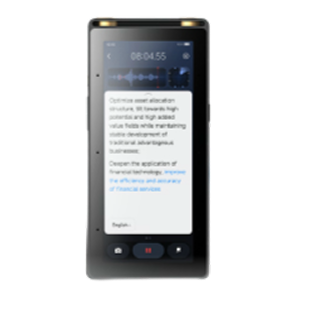
1. During recording, the interface provides a real-time tranion preview, and the transcribed content can be saved.
2. Locking the screen or switching interfaces will not interrupt the real-time tranion process.
3. When Battery Saver mode is enabled, the real-time tranion preview will be disabled to conserve power. However, the full tranion result will still be available in My Files after the recording is complete.
-
What are the different recording modes and their usage scenarios on the iFLYTEK Smart Recorder(302pro)?
Tap the icon in the upper right corner of the recording card on the screen to enter the recording mode selection page.
1. Intelligent recording: applicable to most scenarios.
2. Conference recording: suitable for conference and forum with multiple participants speaking in multiple directions.
3. Speech recording: suitable for lectures or press conference with multiple participants within 10 meters.
4. Interview recording: suitable for one-on-one interview or dialogue with no more than 3 participants and within 1m.
Note: The recording accuracy in all scenarios may decrease due to factors such as a large number of people or a large recording room.
-
Will the audio file be saved if iFLYTEK Smart Recorder (302pro) shuts down automatically during recording?
Will the audio file be saved if iFLYTEK Smart Recorder (302pro) shuts down automatically during recording?
-
Will the data transcribed offline on the iFLYTEK Smart Recorder(302pro) be leaked?
Smart Recorder SR302Pro is completely offline transcription and uses local engine transcription. The data will not be uploaded to any cloud, it is completely confidential, please feel free to use it!
-
How to update system on the iFLYTEK Smart Recorder(302pro)?
System Version Update Method:
1. Connect to the Computer via USB
① Connect the recorder to the computer using a USB cable and select [Update].
② Access the recorder's update disk on your computer. (For Mac users, you must install the Android File Transfer tool. Download it here: http://dl.google.com/dl/androidjumper/mtp/current/AndroidFileTransfer.dmg)
2. Download the System Update Package
① Open the [Update] folder on the recorder’s update drive and click the [System and Offline Language Package Updates] link to view the system version and available updates.
(Download link: http://update.iflyjz.com/cn/systemUpdate)
② Copy the downloaded update package into the [Update] folder.
2. Upgrade the System
Once the update package is copied, disconnect the USB and go to [Settings] > [System Resources] to complete the system update.
Note: Please do not rename the update file.
-
How to Update Offline Language Package on the iFLYTEK Smart Recorder(302pro)?
Offline Language Package Upgrade Guide
Step 1: Connect the recorder to your computer via USB
1. Connect the recorder to your computer using a USB cable.
2. On the recorder, select 【Update】.
3. On your computer, access the recorder’s update disk:
For Mac users: You need to install the Android File Transfer tool. Download it here: http://dl.google.com/dl/androidjumper/mtp/current/AndroidFileTransfer.dmg)
2. Download offline language package
Step 2: Download the offline language package
1.On your computer, open the 【Update】 folder from the recorder’s update disk.
2. Open the 【System and offline language package updates】 link to view the latest version and available updates.
Down load link: http://update.iflyjz.com/cn/offlineLanguageUpdate
3.Download the desired offline language packages and copy them into the 【Update】 folder.
Step 3: Install the offline language package
1. After copying the files, safely disconnect the recorder from your computer.
2. On the recorder, go to 【Settings】 > 【Tranion settings】 > 【Manage language package】.
3. Select 【Update the language package】 to complete the installation.
Note: Do not rename the downloaded upgrade files. Changing the file names may cause the update to fail.