






-
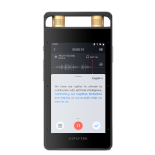
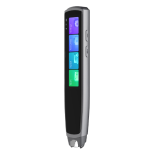
One-touch recording and voice control of the iFLYTEK Smart Recorder(302pro.


Start/Save Recording
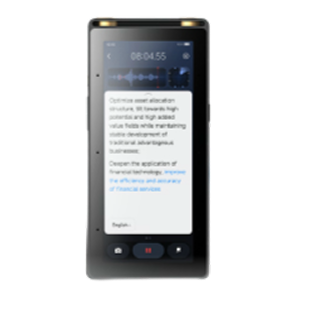
1.Recording (Method 1): Turn on the device, then press the red Record Button at the bottom of the screen to start recording. Tap it again to save the recording.
2.Recording (Method 2): Turn on the device, click the recording card in the center of the screen to start recording, or click the OK button at the bottom of the screen.
3.Select Recording Mode: Tap the icon in the upper right corner of the Recording Card to access the Recording Mode selection page.
4.Save Recording: In the recording interface, click Pause, then press the Done button to save the recording.
-
The difference between the iFLYTEK Smart Recorder(302pro) and mobile phone recording.
The differences between the Smart Recorder and mobile phone recording are as follows:
1.The Smart Recorder uses iFLYTEK intelligent noise reduction technology, enabling effective audio recording in noisy environments.
2.It features directional array microphone technology, allowing for precise sound capture from all directions (360°).
3.With a pickup range of up to 15 meters, the Smart Recorder offers superior hardware and software compared to basic mobile phone microphones and apps, delivering higher tranion accuracy and an overall better user experience.
-
Does the iFLYTEK Smart Recorder(302pro) recognize American or British English?
The iFLYTEK Smart Recorder(302pro) recognizes both American and British English without preference.
-
The iFLYTEK Smart Recorder(302pro) is not accessible when connected to an XP system.
The device is currently compatible with Windows 7 and later versions.
-
If the iFLYTEK Smart Recorder(302pro) switches transcription languages multiple times during the transcription process, which language will the final transcribed text be based on?
If the iFLYTEK Smart Recorder(302pro) switches transcription languages multiple times during the transcription process, which language will the final transcribed text be based on?
-
Steps to follow if the iFLYTEK Smart Recorder(302pro) lock screen password is forgotten
The lock screen password cannot be reset. Please click "Restore" to perform a factory reset.
-
The transcription result from the iFLYTEK Smart Recorder(302pro) is incorrect (e.g., garbled text or other errors).
This device support re-transcribe, go to 【My Files】 → select the file → click the three dots in the upper right corner → Transcription → Re-transcribe →change the Recording language → click Re-transcribe
-
What is the maximum recording duration for a single session on the iFLYTEK Smart Recorder(302pro)?
The maximum duration for a single recording is 4 hours and 55 minutes, after which the recording will be automatically saved.