






-
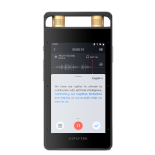
Does the iFLYTEK Smart Recorder Pro(502T)need to remove the protective dust film?

 It must be removed because the recorder has an built-in microphone on the surface, and keeping the film on will affect the recording quality.
 -
How to restore the iFLYTEK Smart Recorder Pro(502T)to factory settings?
Go to Settings → About, and click on Factory Settings. Note: Restoring to factory settings will erase all data, including files, status, and settings.
-
How to check the SN number on the iFLYTEK Smart Recorder Pro(502T)?
1.Open the Smart Recorder, swipe down to access the menu, then go to Settings → About to view the device serial number (SN), system version, and other information.
2.The SN and IMEI can also be found on the packaging box; however, the system version is not displayed there.
3.The SN is the unique identification number of the device, while the IMEI is the identification number for the mobile network module.
-
What are the core audio recording specifications?
The recorder supports ultra-long-distance audio pickup of up to 20 meters and provides high-fidelity 192kHz/32-bit stereo recording quality.
-
What are the key hardware highlights?
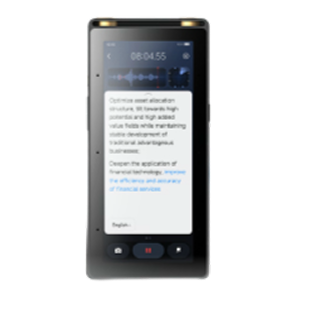
The device is powered by an octa-core 2.2GHz processor and supports global 5G connectivity. It features a 5.05-inch LCD touchscreen with 576×1440 resolution, an 8-microphone array (2 directional + 6 omnidirectional), and a 3010mAh battery with 18W PD fast charging.
-
What is the core positioning of the iFLYTEK AI Recorder S6?
The AI Recorder S6 is designed for professionals in government, business, media, and academia worldwide, delivering professional, intelligent, and secure recording and transcription solutions powered by on-device speech large models for both online and offline scenarios.
-
I just received the iFLYTEK Smart Recorder Pro(502T). Will it activate automatically when I turn it on for the first time? Do I need to do anything?
Activation Guide – First-Time Setup
Activate your device by connecting to the internet and following the on-screen prompts:
1. Select your system language (options include Simplified Chinese, Traditional Chinese, English, French, Korean, and Hungarian).
2. Review and agree to the Privacy Policy and Service Agreement.
3. Connect to a network.
4. Set a screen lock password (optional — you can skip this step).
5. Register using your email address (optional).
6. Log in to your account (optional).
7. Claim your cloud storage space (available after logging in).
Notes:
1. Before powering on, if you're using a 4G SIM card, insert it into the left SIM card tray using the provided ejector pin.
2. After powering on, please follow the setup prompts to connect to the internet. We recommend using a Wi-Fi network. When both Wi-Fi and 4G networks are available, the device will prioritize Wi-Fi by default.
3. Keep your system up to date by checking for updates while connected to the internet.
4. In the "Me" section, tap “Instructions and Feedback””to access manuals, guides, and FAQs. We recommend reviewing them to get familiar with your device.
-
How to claim the cloud storage for the iFLYTEK Smart Recorder Pro(502T)?
When you use iFLYTEK Smart Recorder Pro for the first time, a pop-up will automatically appear for claiming cloud storage, and you can claim it directly. If you skip this step, you can still access and claim the cloud storage benefits later via the "Me" section.